

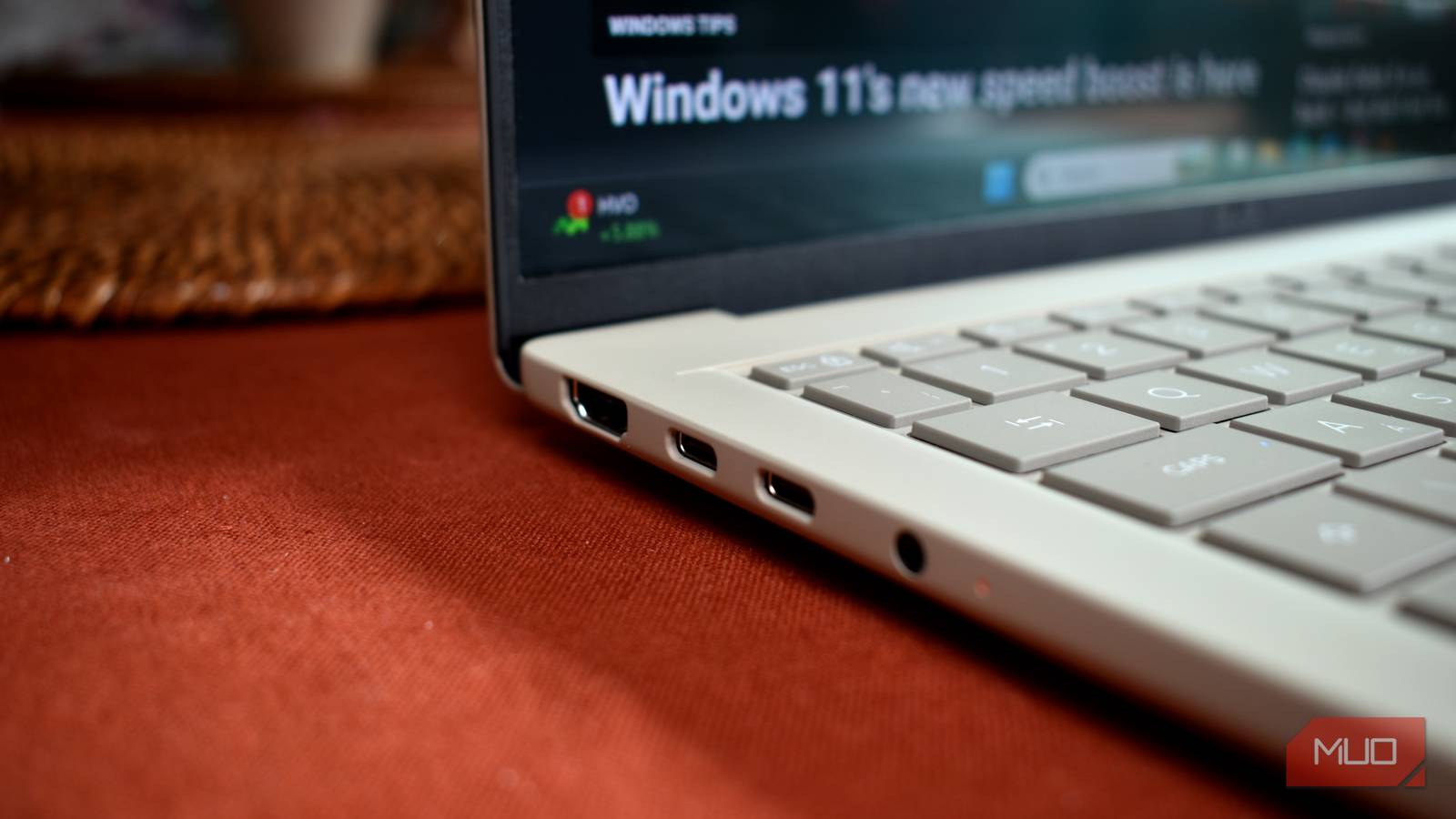
Every PC ships with multiple USB ports, and most people tend to use the same one or two out of habit. Often that means the most convenient port — the front panel socket on a desktop, or the side port on a laptop — rather than the fastest one. If you've never checked whether those ports support different USB standards, there's a good chance you're seeing slower file transfers and slower charging than your hardware is capable of.
USB has been around for decades, and it has gone through many generations. The port shape may look identical across those generations, but the underlying technology is very different. A port that looks exactly like the one next to it could be ten times slower, or ten times faster, depending on the standard it supports. Knowing the difference is essential for anyone who moves large files, edits video, backs up data, or simply wants to charge devices quickly.
USB generations explained
USB, which stands for Universal Serial Bus, was introduced in the mid-1990s as a standard way to connect peripherals to computers. The first widely adopted version, USB 1.1, offered a maximum data rate of 12 Mbps. That was fine for keyboards and mice, but it quickly became a bottleneck for storage devices. USB 2.0 arrived in April 2000 and raised the ceiling to 480 Mbps. At the time, that seemed fast, but modern SSDs can transfer data at much higher speeds.
The real breakthrough came with USB 3.0, which increased the maximum theoretical speed to 5 Gbps — roughly ten times faster than USB 2.0. Over the years, the USB Implementers Forum introduced even faster versions, and the naming scheme became more confusing. USB 3.0 was later rebranded as USB 3.1 Gen 1, then as USB 3.2 Gen 1. USB 3.1 became USB 3.2 Gen 2, and the dual-lane USB 3.2 Gen 2x2 offers 20 Gbps. Newer USB4 and Thunderbolt ports can reach 40 Gbps or more.
This confusion is not just a minor issue. If you plug a high-speed external SSD into a USB 2.0 port, the drive will work, but it will be limited to around 30–40 MB/s in real-world file copies. The same drive plugged into a USB 3.2 Gen 2 port can copy files at roughly 1 GB/s. That is a massive difference, and it has nothing to do with the drive itself.
The table below shows the common USB versions, their theoretical maximum speeds, and realistic file copy speeds:
| USB version | Max theoretical speed | Realistic file copy |
|---|---|---|
| USB 2.0 | 480 Mbps | 30–40 MB/s |
| USB 3.0 / 3.1 Gen 1 | 5 Gbps | 100–400 MB/s |
| USB 3.1 Gen 2 / 3.2 Gen 2 | 10 Gbps | up to ~1 GB/s |
| USB 3.2 Gen 2x2 | 20 Gbps | up to ~2 GB/s |
| USB4 / Thunderbolt 3/4 | 40 Gbps | up to ~3 GB/s |
The wrong port can slow down both transfers and charging
Most computers have at least three or four USB ports, and they are rarely all the same speed. Desktop PCs often put convenience ports on the front panel, but many budget cases connect those front ports to low-speed internal headers. The ports on the rear I/O panel are often wired to the motherboard's faster controllers. On laptops, USB ports on one side may go through a hub or the chipset, while the ports on the other side may connect directly to the CPU, which can affect throughput and charging capability.
Even two adjacent ports on the same machine can be different. A laptop might have one USB-C port that supports Thunderbolt 4 and another USB-C port that only supports USB 3.2 Gen 1. They look the same, but their capabilities are completely different. If you routinely plug your storage drive into the slower port, you will never see the full speed of the drive or the full speed of the faster port.
Charging is also affected. Standard USB 2.0 ports typically deliver only 2.5W of power, which is enough for a mouse or a small accessory but painfully slow for a phone or tablet. USB 3.x ports can deliver up to 4.5W, while USB-C ports with Power Delivery can output much more — often 15W, 45W, or even 100W depending on the implementation. Choosing the right port can mean the difference between charging your phone in under an hour and waiting all afternoon.
Peripherals like keyboards and mice do not need high bandwidth, so using a fast USB 3.2 Gen 2 port for them is wasteful. The smarter approach is to reserve the fastest ports for storage devices, external GPUs, docks, and anything else that moves large amounts of data. The slower ports are perfectly fine for input devices, dongles, and low-power accessories.
How to identify USB ports
Identifying USB ports is not always straightforward, but there are several methods that can help. The most obvious clue is the color of the plastic inside the port. USB 1.x ports are usually white, USB 2.0 ports are usually black, and USB 3.0 ports are usually blue. Some manufacturers use teal or green to indicate USB 3.1 Gen 2, and red may indicate a port that provides power even when the system is off — often called always-on or sleep-and-charge.
However, color coding is not an official universal standard. A blue port is usually a good sign, but it is not a guarantee. Some manufacturers have used blue plastic for USB 2.0 ports, especially on older motherboards. The safest approach is to confirm with the logo printed next to the port, the system documentation, or the operating system.
The following table shows the most common color conventions:
| Color | Generation | Speed | Power Output |
|---|---|---|---|
| White | 1.0 | 12 Mbps | 2.5W |
| Black | 2.0 | 480 Mbps | 2.5W |
| Blue | 3.0 | 5 Gbps | 4.5W |
| Teal/Red | 3.1 Gen 2 | 10 Gbps | 4.5W |
Look for logos and labels
Many USB ports have a small logo next to them. A plain USB trident symbol without any extra letters usually indicates USB 2.0. If you see "SS" next to the trident, that stands for SuperSpeed and means the port supports 5 Gbps. "SS+" or "SS10" indicates 10 Gbps. Some laptops and motherboards also print "PD" for Power Delivery, or a lightning bolt symbol for fast charging. Thunderbolt ports may have a lightning bolt icon, sometimes with an arrowhead, to distinguish them from regular USB-C ports.
If no symbols are visible, the best software-based method is to open Device Manager on Windows. Expand the "Universal Serial Bus controllers" section, and you'll see a list of host controllers and hubs. The names often include "USB 3.0", "USB 3.1", "USB 3.2", or "USB4" depending on the system. This does not tell you which physical port is which, but it tells you what capabilities are available. To map ports to physical locations, you can plug a device into each port and watch for a new entry to appear in Device Manager, or consult your motherboard or laptop specification sheet online.
Practical tips for getting the most out of USB ports
When you plug in a storage drive, check the drive's interface first. If it is a SATA SSD inside a USB enclosure, it will not benefit much from a 10 Gbps port. If it is a fast NVMe SSD in a USB 3.2 Gen 2x2 enclosure, then a 5 Gbps port will hold it back. Matching the port speed to the device's maximum speed is the best way to avoid bottlenecks.
Cables matter too. A USB-C cable that only supports USB 2.0 will prevent a 10 Gbps or 20 Gbps connection from establishing. Even if the port and the drive are both fast, a poor-quality cable will drop the link to the lowest common denominator. Always use a cable that is rated for the speed you need. For USB4 or Thunderbolt, use certified cables with the appropriate logos.
USB hubs can also introduce limitations. A cheap unpowered hub shares bandwidth among all connected devices and may only support USB 2.0. If you connect your backup drive through a hub, it could be running at a fraction of its potential. For high-speed transfers, connect directly to the motherboard or laptop port. If you need more ports, choose a powered USB 3.2 hub or, even better, a Thunderbolt dock for maximum performance.
Another useful habit is to label your ports. A small sticker next to the fastest USB port can save you time in the future. You can also use different ports for different purposes: one fast port for the external drive, one charging port for your phone, and the remaining ports for peripherals. This kind of organization ensures you're always using the right port for the task.
It is worth remembering that USB standards are backward compatible. A USB 3.0 device will work in a USB 2.0 port, and a USB 2.0 device will work in a USB 3.0 port. The connection will simply run at the slower speed. That is why so many users never realize there is a problem. Everything works, but it works slower than it could. If you have been blaming your external SSD for sluggish transfers, check the port you are using. There is a good chance the drive is not the issue.
The placement of USB ports on a computer is often based on convenience, not speed. Manufacturers put ports where they are easy to reach, but that does not mean they are all equally capable. Taking a few minutes to inspect your ports, read the labels, and check your system's specifications can make a noticeable difference in daily use. File transfers will finish faster, backups will take less time, and your devices will charge more quickly.
Source: MakeUseOf News