

Key facts at a glance
- Gmail's free storage allowance is 15GB, shared across Gmail, Google Drive, and Google Photos.
- A second, dedicated archive Gmail account can automatically pull old messages from the primary inbox via POP3.
- Google is ending POP3 support. New users lost access in the first quarter of 2026, and existing users will lose it later this year.
- Backing up mail with Google Takeout is recommended before the transfer.
- Drafts and Spam messages are not transferred by the POP3 import process.
- After the transfer, the original account's Trash must be emptied manually to reclaim space.
- A Google app password may be required, and it is displayed only once.
- Inactive Google accounts can be deleted after two years, so the archive account must be signed into periodically.
Why Gmail storage fills up so quickly
Fifteen gigabytes of free storage sounds generous when you first create a Gmail account. That feeling does not last. The free allotment is not reserved for email alone. It is shared across Gmail, Google Drive, and Google Photos, which means every attachment, every uploaded video, and every photo backup competes for the same limited space. If you regularly send or receive large files, or if you have years of camera uploads sitting in Google Photos, the notification that your account storage is full can arrive much sooner than expected.
Once that notification appears, Gmail can stop sending and receiving new messages. That turns a minor housekeeping problem into an urgent one. The quickest official solution is to upgrade to a paid Google One plan. The least expensive tier usually starts at 100GB for about $20 a year, but that means paying real money to store old emails you may never open again. For people who want to avoid a recurring subscription, there are only a few practical alternatives: delete messages one by one, download large files to a local drive, or move everything to a second account.
Deleting old mail can recover a surprising amount of space, especially if you sort by size and remove the biggest attachments first. Yet the process is tedious. Sifting through a decade of correspondence and deciding which memories to keep is not how most people want to spend a weekend. Downloading files to a desktop or external drive can help temporarily, but local storage has limits too, and the same clutter eventually reappears on your device. That is why the most aggressive option, transferring all old messages to a new Gmail account, has become so appealing.
Why transferring old mail to a new account works
The idea is simple: treat your current inbox like a cramped apartment and your new archive account like a free storage unit across town. You create a second, dedicated Gmail account, then use Gmail's built-in POP3 tools to automatically pull every old message from your primary inbox into the new archive. Once the transfer finishes, you can wipe the original account clean and start fresh. The archive account keeps your history searchable, while your main account returns to a manageable size.
POP3, or Post Office Protocol version 3, is an older email standard that allows one mail server to download messages from another. It is not as feature-rich as IMAP, which keeps folders and read status synchronized across devices. But for a one-time bulk migration, POP3 is still effective. The catch is that Google is phasing it out. New users already lost access to POP3 in the first quarter of 2026, and current users are still able to use the protocol only until it is turned off later this year. That makes this a time-sensitive workaround. If you have been putting off a Gmail cleanup, the window for using POP3 is closing.
Back up your Gmail messages first
Before changing any settings, back up your email. This step protects you if something goes wrong during the transfer. You can download a copy of your messages to a computer or an external hard drive using Google Takeout. The backup does not need to live forever. You can delete it after the transfer finishes, but keeping a local copy until you have confirmed everything arrived safely is a sensible precaution.
The time required depends on mailbox size. A test account holding roughly 75,000 messages produced a Google Takeout download in about two hours. Accounts with fewer messages will finish faster. Accounts with years of attachments, photos, and large files may take longer. Start the backup and let it run while you prepare the destination account.
Step-by-step: Enable POP3 on your original Gmail account
After your backup is complete, the first major step is to turn on POP3 for the original account. These settings tell Gmail that another account will be allowed to download old messages.
- Log in to your original Gmail account. Click the gear icon in the top right corner and choose See all settings.
- Select the Forwarding and POP/IMAP tab. Then choose Enable POP for all mail. POP stands for Post Office Protocol.
- Under When messages are accessed with POP, you will see several options. To automatically delete emails from the original account after the transfer, select delete Gmail's copy. This is the setting that makes the cleanup hands-off.
- Select Save Changes at the bottom of the page.
At this point, the original account is ready to send its messages to the new archive account. Do not skip the backup step before doing this. Once messages are deleted from the original account, they will go to Trash, and recovery becomes more difficult after the Trash is emptied.
Step-by-step: Create an archive account and import old messages
Next, create a brand-new Gmail account. This will be your archive. Give it a name that makes its purpose clear, such as a variation of your main address with the word archive added. Once the account exists, log in and follow these steps:
- Click the gear icon at the top and select See all settings.
- Select the Accounts and Import tab at the top. Then find Check mail from other accounts and select Add a mail account.
- In the pop-up window, enter the full address of your original Gmail account. Select Next.
- Select Import emails from my other account (POP3) and select Next again.
- Enter the password of your original Gmail account. You may need to create a Google app password instead, depending on your security settings.
- Select 995 under Port.
- Check these three boxes: Always use a secure connection (SSL) when retrieving mail, Label incoming messages, and Archive incoming messages (Skip the Inbox). The last option keeps the imported mail out of your new inbox so the archive account does not immediately become cluttered.
- Select Add Account.
- When asked, select Yes, I want to be able to send mail as [your original Gmail address]. You can close the pop-up window after this step.
Gmail will now begin retrieving messages from the original account. The archive account is linked, and the transfer should start automatically. Depending on volume, it may take hours or even days to complete.
You may need a Google app password
In testing, the standard Gmail password did not work for syncing the two accounts. The likely reason is that modern Google security often blocks less secure apps or protocols from using a regular password. The fix is to create a temporary app password. Google app passwords are 16-digit passcodes designed for apps or devices that do not support the latest sign-in security. They work like a normal password, but they are generated separately.
To create one, you must have 2-Step Verification enabled on your Google account. Go to the Google Account app passwords page, give the password a recognizable name such as Transfer Bulk Email, and click Create. A pop-up will show a new 16-digit passcode. Use that passcode in step 6 of the import instructions instead of your usual password. Important: Google displays the app password only once. Write it down or store it securely before closing the window. After the transfer is complete, delete the app password, because Google itself notes that app passwords are not recommended and are unnecessary in most cases.
What happens after the accounts are synced
Once the archive account is linked to the original account, messages will transfer automatically. A mailbox with about 75,000 messages took roughly two full days to move completely. Smaller mailboxes will finish faster, while larger ones may take longer. During this time, you can continue using the original account, but be aware that messages are being copied and then deleted according to the POP3 setting you chose.
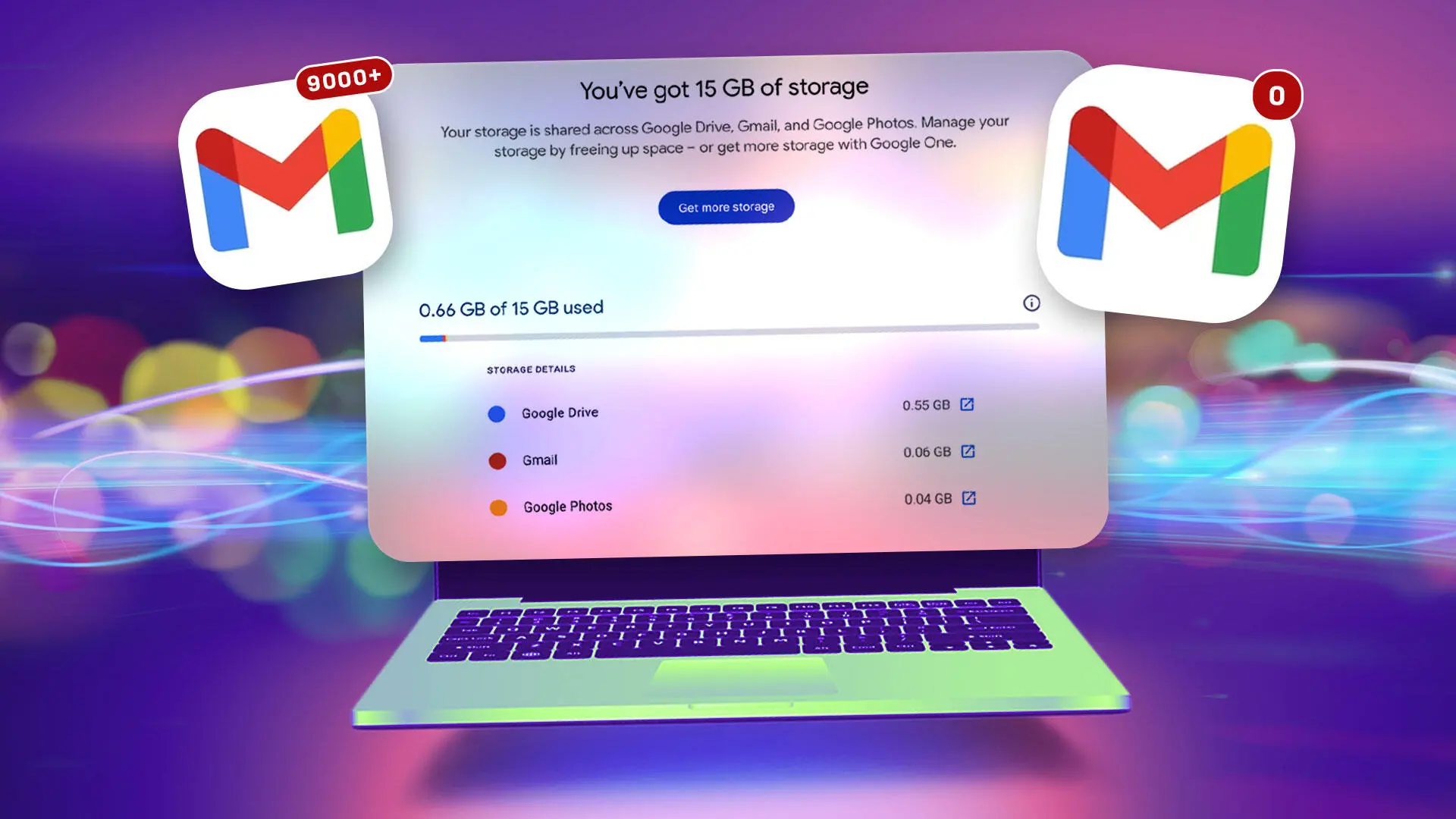
After the transfer, the original Gmail account will place all those messages in the Trash folder. You must empty the Trash manually to actually reclaim the storage space. Clearing 75,000 messages from Trash took about an hour in testing. Before the transfer, the test account was using a little more than 12GB, or about 80% of the free 15GB. After the transfer and Trash cleanup, the account used only 0.66GB, of which just 0.06GB came from Gmail. That is a dramatic reduction, and it gives the original account a fresh start without paying for extra storage.
What will not be transferred
Not every message moves. In testing, Gmail transferred all messages except for two categories: Drafts and Spam. Drafts need to be handled manually. You can review them, send them, save them elsewhere, or delete them before or after the migration. Spam messages are automatically deleted every 30 days, so you can let Gmail handle them. If you want to keep any Spam messages, go into the Spam folder after the transfer and forward or save them before they disappear.
After the transfer: stop the sync and clean up
Once all messages have been imported, you should stop the automatic transfer process. Otherwise, the archive account will keep checking the original account. To disconnect them, log in to the new archive account, open Settings, and select See all settings. Go to the Accounts and Import tab. Under Check mail from other accounts, find your original account and select delete. When prompted to confirm deleting the mail account, select OK.
If you created an app password, delete it now from the Google Account app passwords page. This reduces the risk of leaving an unnecessary credential active. After that, the migration is complete. You can use the original account as your everyday inbox, and the archive account as a searchable historical record.
Keep your archive account active
One final detail matters for long-term storage. Google may delete accounts that have been inactive for more than two years. That means you should not ignore the archive account forever. If you do not plan to send mail from it regularly, sign in at least once every two years to keep it active. Setting a calendar reminder is a simple way to ensure the archive remains available. With that done, your old messages are safely stored, your main inbox has room to breathe, and you have avoided paying for extra storage.
Source: CNET News